We believe that the solution to maintaining an overview of your job application process, is a web based application that can keep track of the job advertisements and applications for you. This application is called JobString, and will be useable on both computers and mobile phones. The name reflects how it enables the user to organize the job applications and advertisements and thus maintain a common thread throughout the application period. The target group for this product includes everyone involved in a job search process. This may include students looking for a summer job or a permanent position after finishing their study, as well as others finding themselves in a job applicant position.
JobString will offer the user an overview of submitted applications, as well as the advertisement and other useful information related to the applications. In this way, the user will at all times be able to keep track of the active applications and secure appropriate follow up actions. The user does not need to apply for the position to register the advertisement info in JobString. This way, the user may collect information for jobs he/she wish to apply as well. Relevant information that may be registered include:
JobString is organized as a webpage where each user registers an account. The user will at registration get to choose what type of information is wanted in the application overview. These selections can be adjusted at a later stage if the user wants to. JobString will at all times be connected to common, large platforms for job application. All job applications submitted through such a platform will be automatically registered in JobString. The user can get a list of all these platforms on their account settings page. Employers who collect job applications through their company’s own website may also connect their system to the JobString registrations to make it easy for their applicants. Alternatively, the user must register the information manually in the JobString application. This functionality is also necessary in case the user applies for a job outside any specific portal, for instance by e-mail. It will also be possible for the user to manually edit the information already stored in JobString, this is even if the information initially was registered automatically.
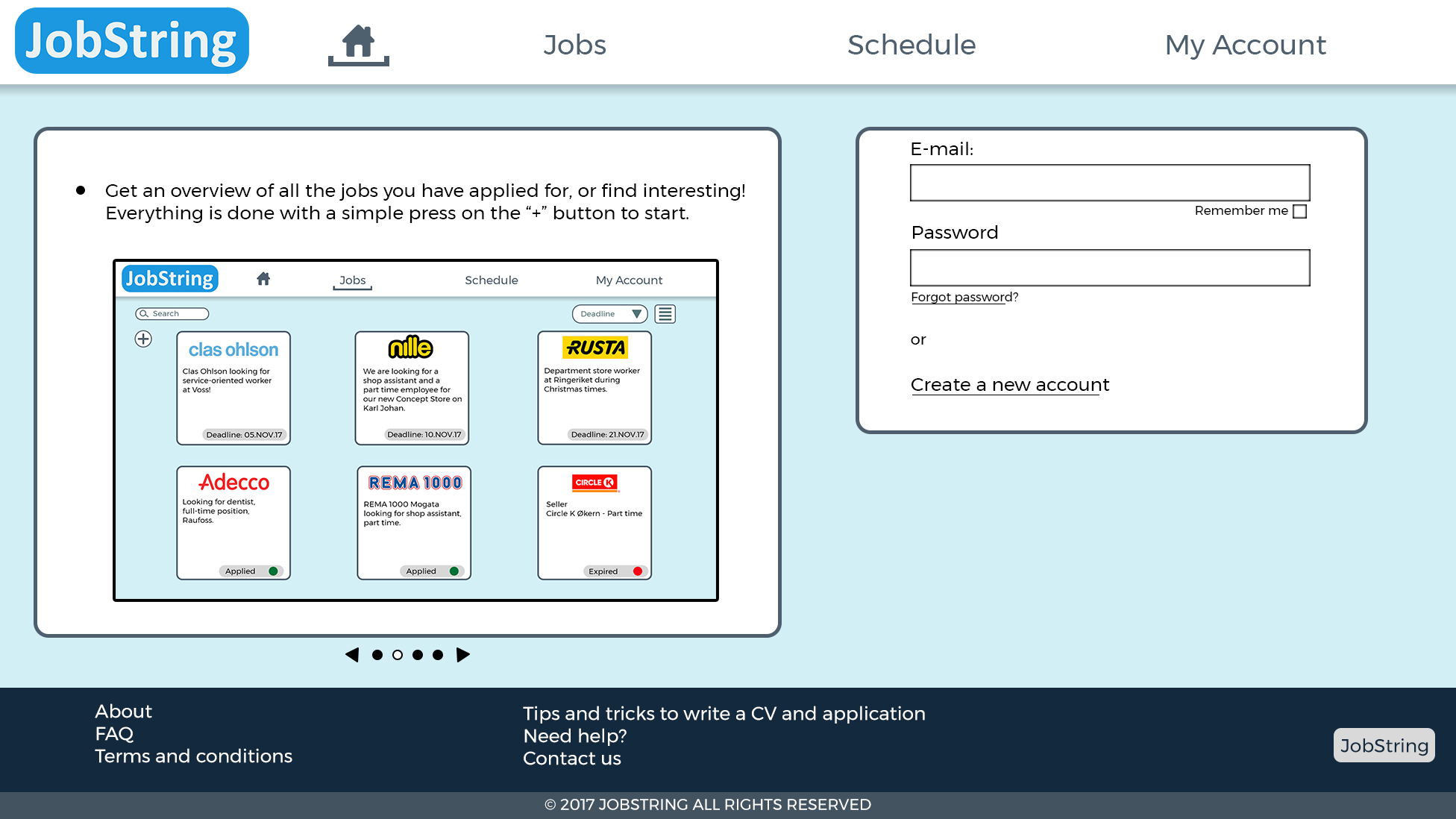
The first page seen by the user when entering the JobString webpage is the homepage, illustrated above. Here, a slideshow combined with text bubbles will explain how to navigate and use JobString. The user can get this information read out loud if their web browser supports text-to-audio. This is relevant for the rest of the JobString webpage as well. In addition to explaining how the application is used, the homepage is where the user logs in to the account using the registered e-mail address and password. If the user does not have an account, they can press the button Register account to create their JobString account. If the user needs to return to this page at a later stage, the house symbol in the navigation bar at the top of the page is pressed.

The navigation-bar is your main tool for navigating the website. When entering the JobString web page, the user must first enter their user information and press Log in on the front page. The user is taken to Jobs. This page will provide the user with an overview over all registered applications. The user can view the applications, change their status and add new or remove applications from the registry. The user may now navigate the website using the navigation-bar, illustrated above. The user may enter the page My Account to view and edit the user information and settings. Further, the user may press Schedule to access this page where an overview of important dates is presented in form of a calendar. It provides info about for instance when a reply is expected to a job application, time for job interviews and application deadlines. This overview enables the user to always apply first to the most time critical jobs, and thus secure that all relevant applications are sent. At the bottom of the web page, a footer provides the user with useful information on for instance how to contact customer support and how to report errors in the application. This are on the web page will look as illustrated in the figure below.

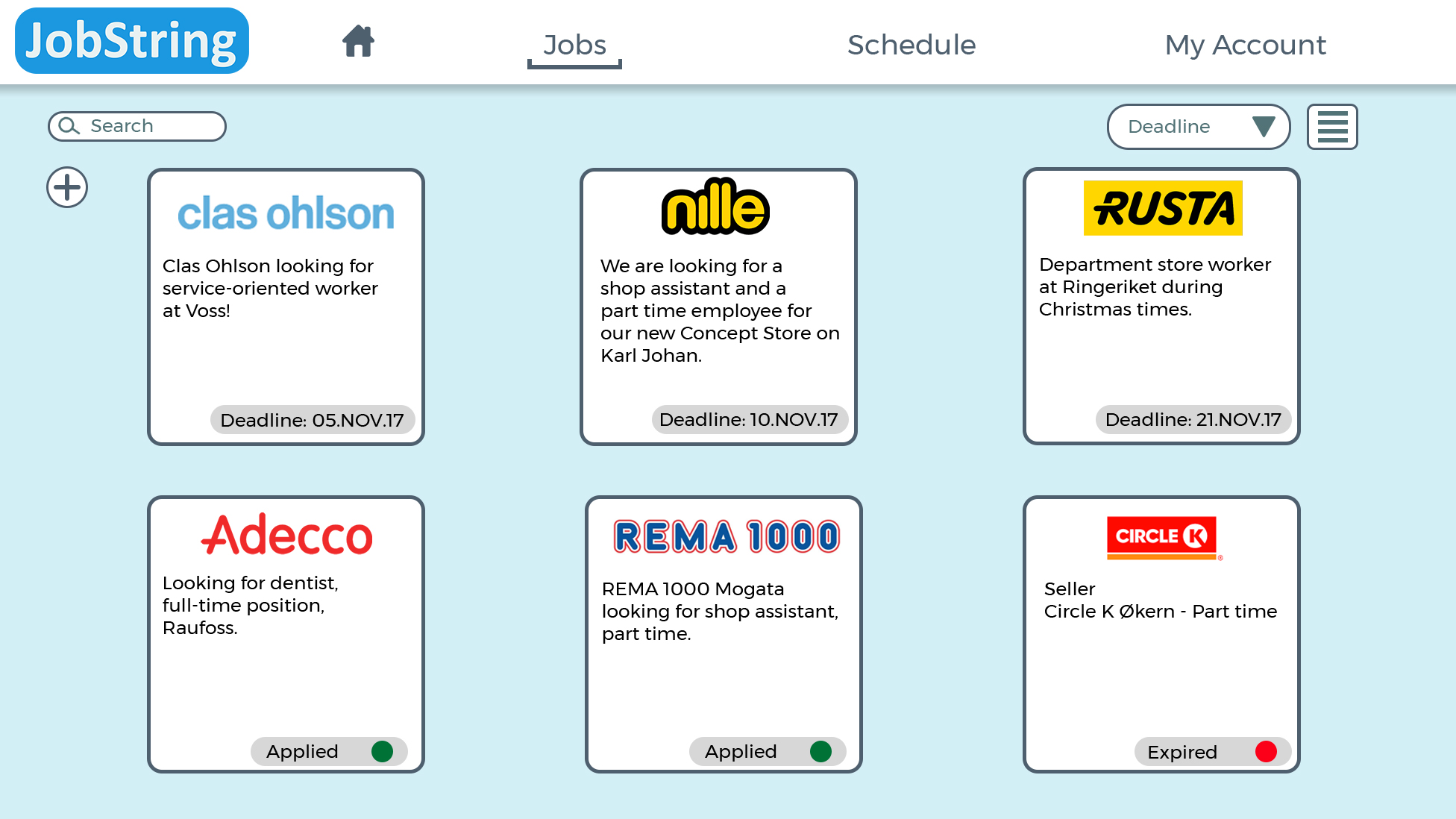
Jobs provide the user with an overview of all registered job applications and advertisements. Each registered job advertisement is presented as a card on the page, as illustrated above. This card will initially display the most essential information, such as company logo, title for the advertised position and application deadline or status. When the user clicks on the card, it will expand to display all available information regarding the position. The user can also click Edit on the card to change the information about the position.
The cards are sorted according to their status with the advertisements not applied to listed first. Following these are the already applied positions and the ones where the deadline has expired. If the user wishes to sort the cards in a different manner, for instance according to company name, this can be done using the button Sort placed at to the left on the page. Here, the user will also find a search field where specific search words can be entered to quickly find a specific position or advertisement. Finally, a button named Add is located on the left side of the page. When the user clicks this button, new advertisements and positions can be registered manually into JobString. Normally, the information is automatically collected by JobString from the job search portals, but sometimes the user may wish to register a job that does not have an advertisement. This may be to register a trainee position that will be advertised at a later stage, so that the user does not forget to apply when it is advertised. It may also be relevant to register an open application for companies that does not have any job openings. JobString will then help the user remember to apply for this company even though an advertisement is not available for direct registration. The user may set a deadline for the application, depending on what they find appropriate. At the right side of the page, the user will have the option to change how the information is presented. Instead of displaying the job advertisements as cards, the user can have the information presented as a list. These options are similar to how users can switch between box- and list view of pictures and documents in the computer’s file explorer.
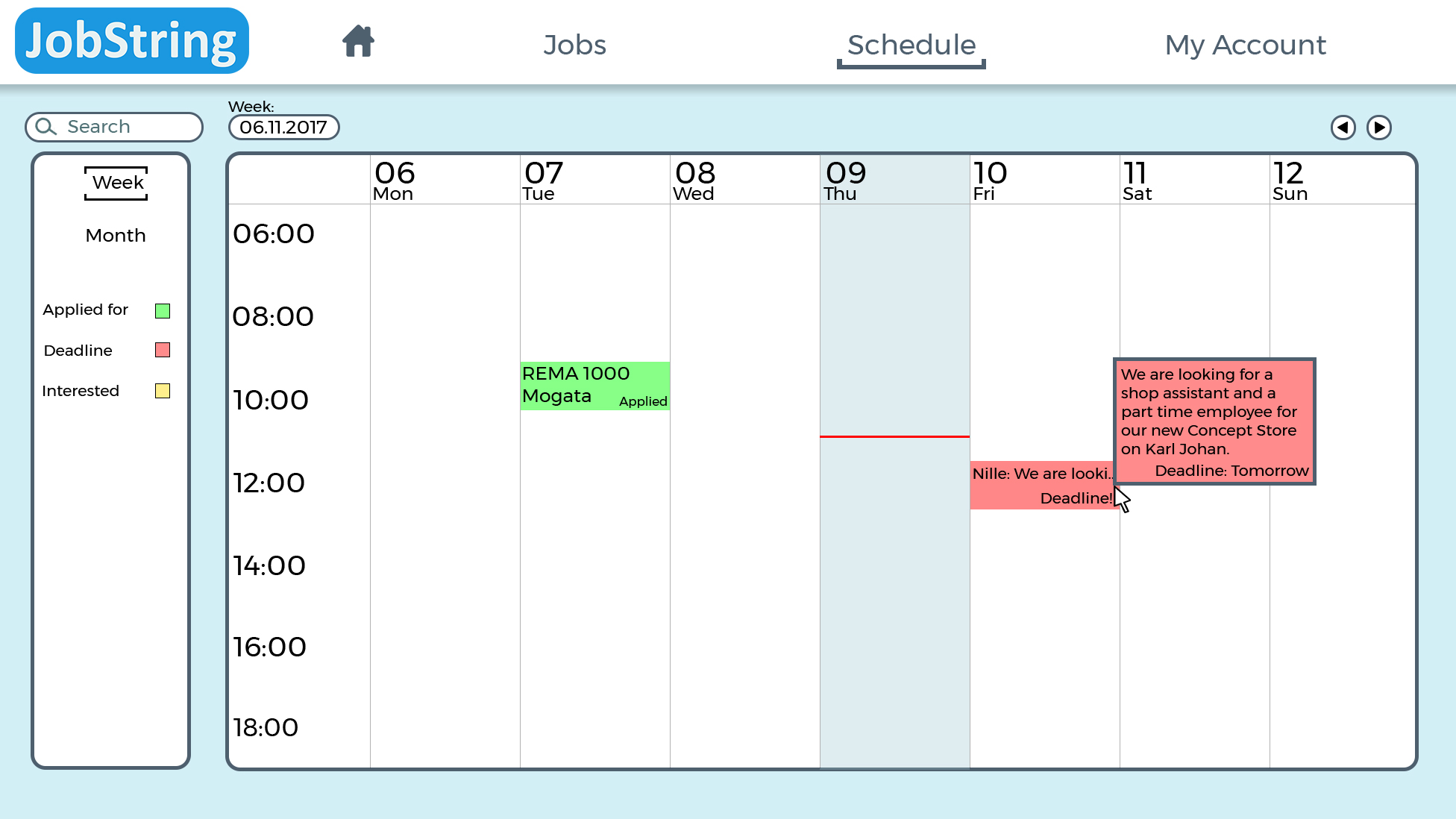
Schedule provide the user with a visual overview of important dates, using a calendar. By pressing Week the user will change the view of the calendar to show one week at a time. Month will in the same way change the view to show a full month at a time. The arrows at the right side of the page are used to change between the weeks and months. Search at the top left of the page is used in the same way as on the Jobs page. The user can type specific words to quickly find the events he/she is looking for. As displayed in the illustration above, the information in the calendar will expand when the user holds the cursor over it to show more information. It will also display an Edit button. This can be clicked if the user wishes to change the information directly in the calendar or add new reminders and important dates.
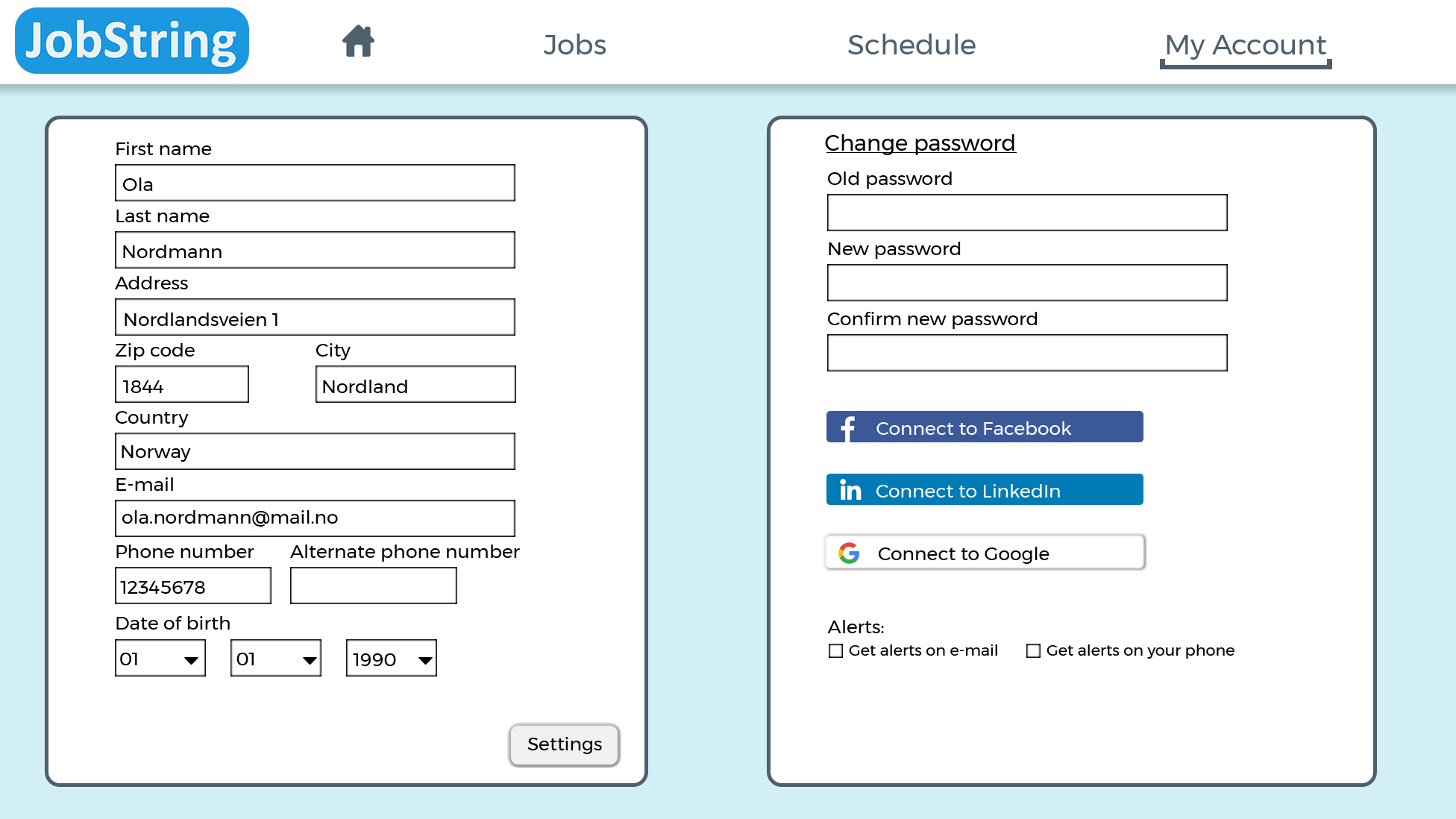
My Account provides the user with an overview of personal settings, as illustrated above. The user information will be displayed on the page, and the user can press Change settings to change this information and see more settings. The user may change their password on this page, and also have the opportunity to connect their JobString account directly to their personal LinkedIn-, Facebook- and Google account. This is done by marking the checkboxes for connection, as illustrated. The user will then be able to use LinkedIn actively in their application process by for instance importing their CV directly from LinkedIn in the job application portals. In addition to this, the user can on the account page administrate what type of alerts he/she wishes to receive. Both e-mail and mobile alerts are possible, as well as the option of no alerts at all. This last option is easily achieved by not marking any of the boxes. The alerts will let user know for instance when an application deadline is near, or notify the user at the date when a reply is expected.